Migrate Klaviyo to Omnisend
Migrate Klaviyo to Omnisend without breaking deliverability: export lists + segments, preserve consent, map key properties, rebuild only the revenue flows, then warm up sends from engaged contacts first. You’ll be done when Omnisend is sending and Klaviyo lifecycle flows are paused.
If you’re deciding between platforms, read: Omnisend vs Klaviyo (Shopify 2026).
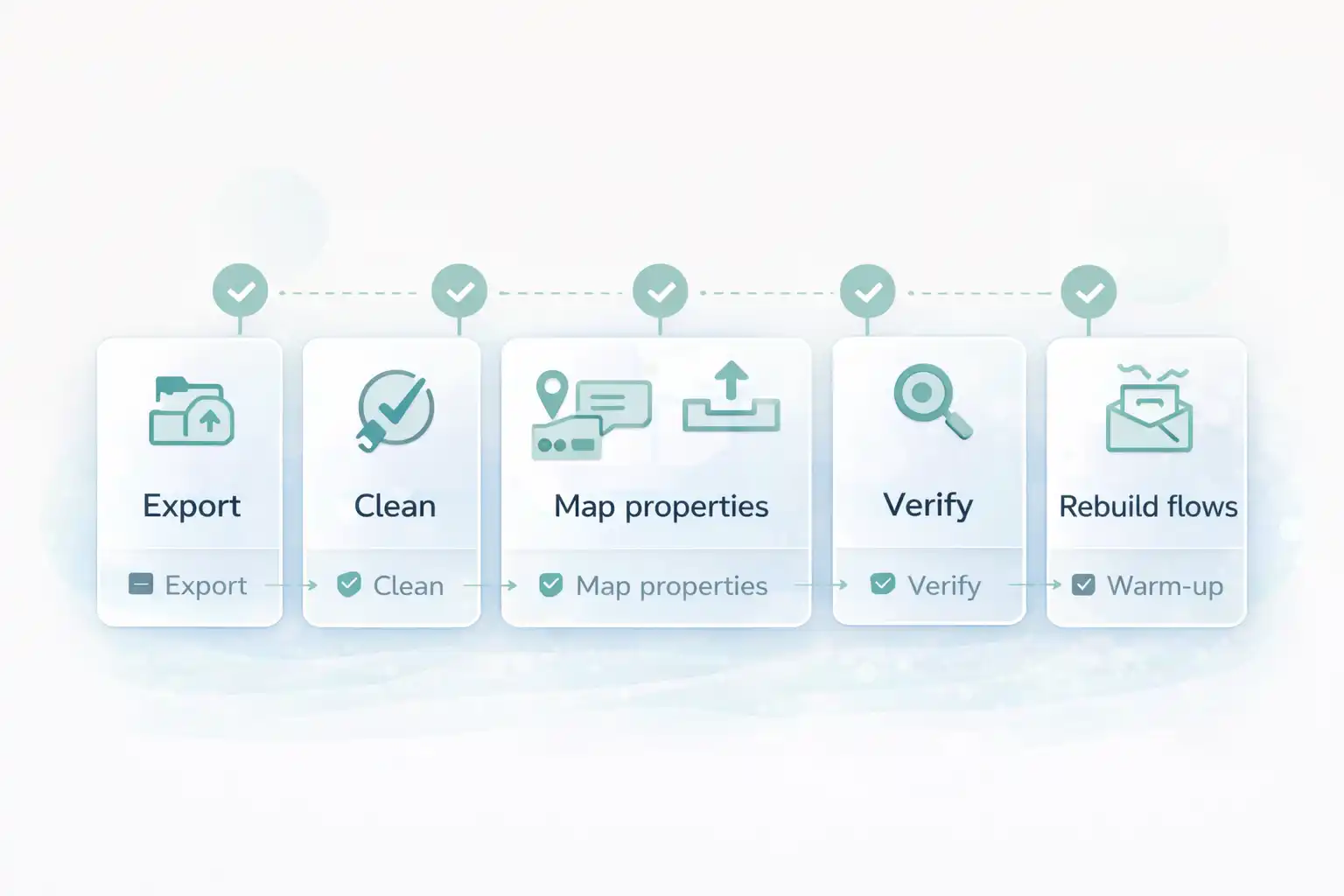
Migrate Klaviyo to Omnisend checklist (what matters)
Klaviyo migrations fail for one reason: people move contacts but lose segmentation and event logic. Your goal is simple: keep targeting (properties + segments) and ship the 4 revenue flows first.
- Consent first: import only contacts who can receive marketing.
- Targeting second: preserve properties (VIP, lifecycle, country, language).
- Revenue third: rebuild welcome, abandoned cart, post-purchase, winback.
- Warm-up last: start with engaged segments.
Before you start Migrate Klaviyo to Omnisend
Have these ready so the migration is smooth:
- Klaviyo admin access (lists, segments, exports).
- Omnisend admin access (imports, workflows).
- Decision: keep your sender domain and from-address (recommended).
- List of “must keep” properties (VIP, lifecycle stage, language, country).
- A quick inventory of your top 4 flows and their timing.
Start here. Create/launch your Omnisend workspace so you can import right after exporting.
Open OmnisendCommon pitfalls (that waste hours) when Migrate Klaviyo to Omnisend
- Two tools sending → duplicate flows (especially abandoned cart).
- Losing properties → your segments break and campaigns become generic.
- Importing cold contacts first → deliverability drop.
- Copying every flow → launch delay (ship essentials).
- Wrong time windows after migration → results look “bad” because targeting changed.
Step-by-step: Klaviyo → Omnisend GPS
Step 1/8 — Audit: pick what you migrate (v1 scope)
Goal: clarityYou’re migrating the revenue system and the targeting logic — not years of old campaigns.
Must migrate (v1)
- Opted-in contacts
- Key properties (VIP, lifecycle, language, country)
- Segments you actually use weekly
- Core flows: welcome, abandoned cart, post-purchase, winback
Skip (for now)
- Old one-off campaign templates
- Rarely used segments
- Deep design polish
Step 2/8 — Export lists/segments from Klaviyo
Goal: dataExport in a way that preserves targeting. Keep a “subscribed/marketing” set separate where possible.
Export sets (recommended)
- Export A: subscribed / marketing-permission contacts
- Export B: suppressed/unsubscribed (for reference, not for mailing)
- Export C: your top segments (VIP, repeat buyers, engaged)
Naming convention (copy)
kl_subscribed.csv
kl_suppressed.csv
kl_segments_top.csv
Step 3/8 — Clean the file (properties + consent sanity)
Goal: import-readyKeep only what you’ll actually use for segments and personalization.
Cleanup checklist
- One row per contact (dedupe by email).
- Keep properties you use: VIP, lifecycle, language, country.
- Normalize phone numbers (E.164) only if you’ll use SMS later.
- Remove junk fields (unused metadata).
- Make tags consistent (no duplicates like vip/VIP).
Core columns (copy)
email
first_name
last_name
phone (optional)
language (optional)
country (optional)
tags (comma-separated)
vip (optional)
lifecycle_stage (optional)
Next: map properties correctly in Omnisend, then import your clean file.
Start Omnisend FreeStep 4/8 — Map properties (Klaviyo → Omnisend) so segments survive
Goal: targetingYour segmentation is your money. If VIP/lifecycle/language disappears, your campaigns lose precision.
Mapping rules (simple)
- Email → email (required)
- Name → first/last name
- Tags → tags (or a custom property you’ll segment by)
- VIP/lifecycle/language → custom properties
Tag/property hygiene (copy)
Use consistent values:
VIP = true/false
lifecycle_stage = New, Active, At-risk, Inactive
language = en, de, fr (or your set)
Avoid: multiple synonyms for the same thing
Step 5/8 — Import to Omnisend (subscribed set first)
Goal: clean importImport your subscribed contacts first. Then verify profiles and segment counts before sending anything.
Import checklist
- Import kl_subscribed.csv first.
- Confirm mapping for tags + custom properties.
- Check a few random profiles (VIP, lifecycle, language).
- Create a test segment (e.g., VIP) and verify counts look right.
FOLLOW reference (official docs)
Use official import guidance while doing this step:
Step 6/8 — Prevent duplicates (pause Klaviyo lifecycle flows)
Goal: one senderBefore Omnisend workflows go live, pause any overlapping Klaviyo flows to avoid double emails.
Pause these first
- Welcome series
- Abandoned cart
- Post-purchase / review / cross-sell
- Winback / reactivation
Copy/paste “migration rule” (internal)
Migration rule: Klaviyo lifecycle flows OFF before Omnisend workflows go ON.
Transactional order emails remain handled by the ecommerce platform.
Step 7/8 — Rebuild only the 4 revenue flows (v1)
Goal: launchRebuild what prints money first. Everything else can wait.
Priority order
- Welcome
- Abandoned cart
- Post-purchase
- Winback
Step 8/8 — Warm up: send to engaged contacts first
Goal: inboxStart with the people most likely to open/click. Expand gradually as metrics stay stable.
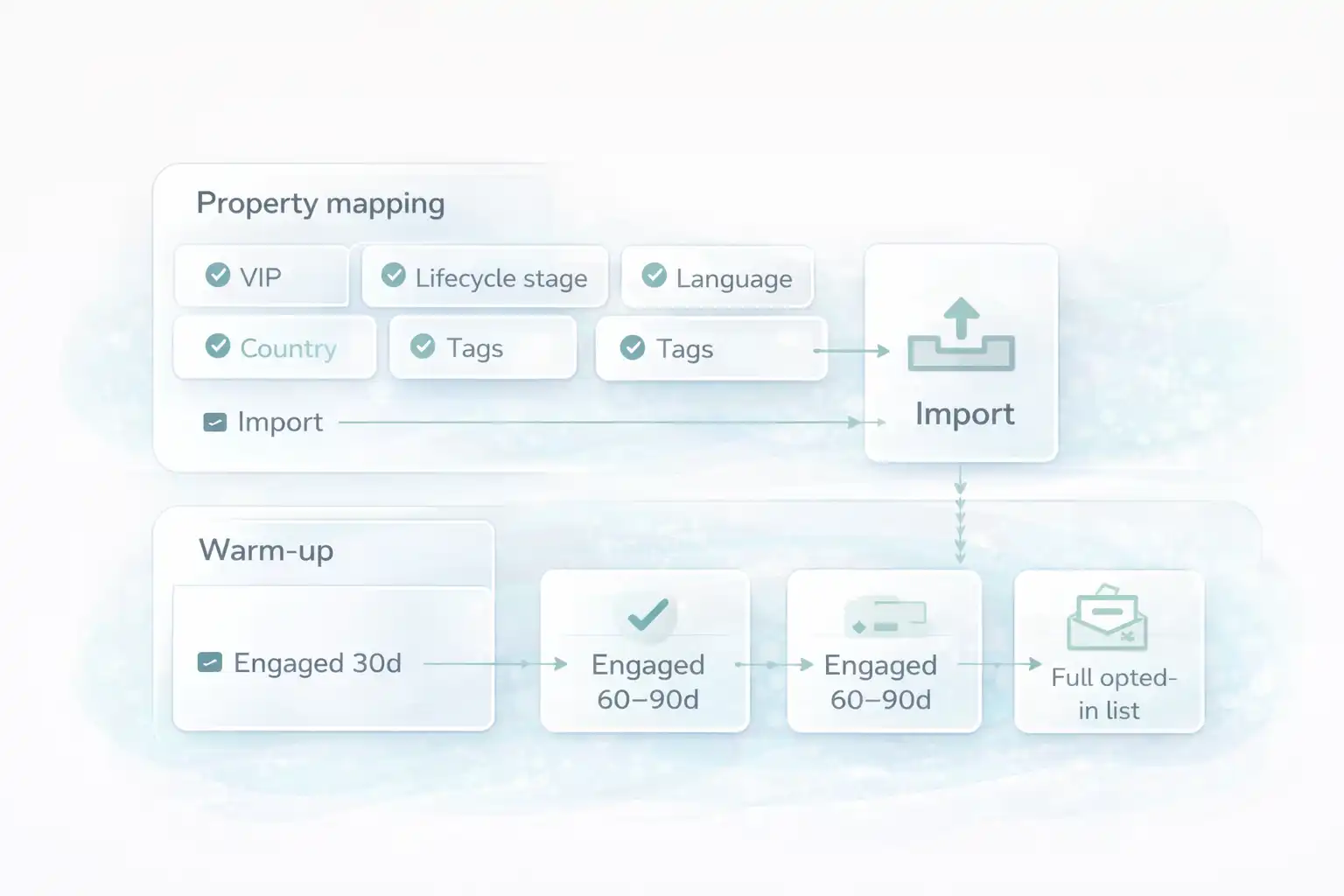
Warm-up plan (simple)
- Day 1–2: engaged last 30 days
- Day 3–5: engaged last 60–90 days
- Then: full opted-in list
If it fails (fast fixes)
- Reduce volume (smaller engaged segment)
- Remove cold contacts from early sends
- Use simple content (one CTA, fewer images)
Migrate Klaviyo to Omnisend Flow diagram (properties + warm-up)
Keep the order right: preserve properties, verify segments, then expand sending gradually.
Done checklist (you’re finished when…)
- Subscribed contacts imported with correct properties (VIP, lifecycle, language).
- Your key segments can be rebuilt from imported properties.
- Klaviyo lifecycle flows are paused (no duplicates).
- Your v1 flows are live (welcome, abandoned cart, post-purchase, winback).
- A real inbox test succeeded and all CTAs work.
- Warm-up is planned (engaged first → expand gradually).
- You’ll optimize after 7 days (one variable at a time).
Switch without losing your targeting
You now have a migration plan that preserves properties, prevents duplicates, and protects inbox placement. Open Omnisend, import clean data, publish v1 flows, then optimize with real results.
No credit card required • Cancel anytime • Properties first, sending second