
Omnisend SMS Automation Setup
Omnisend SMS Automation Setup is done when: your signup consent is compliant, your “STOP/HELP” logic works, and your first 2–3 SMS flows are published with quiet hours + frequency caps. Keep Shopify/WooCommerce in another tab and follow the steps below.
Need the bigger picture? See SMS marketing automation.
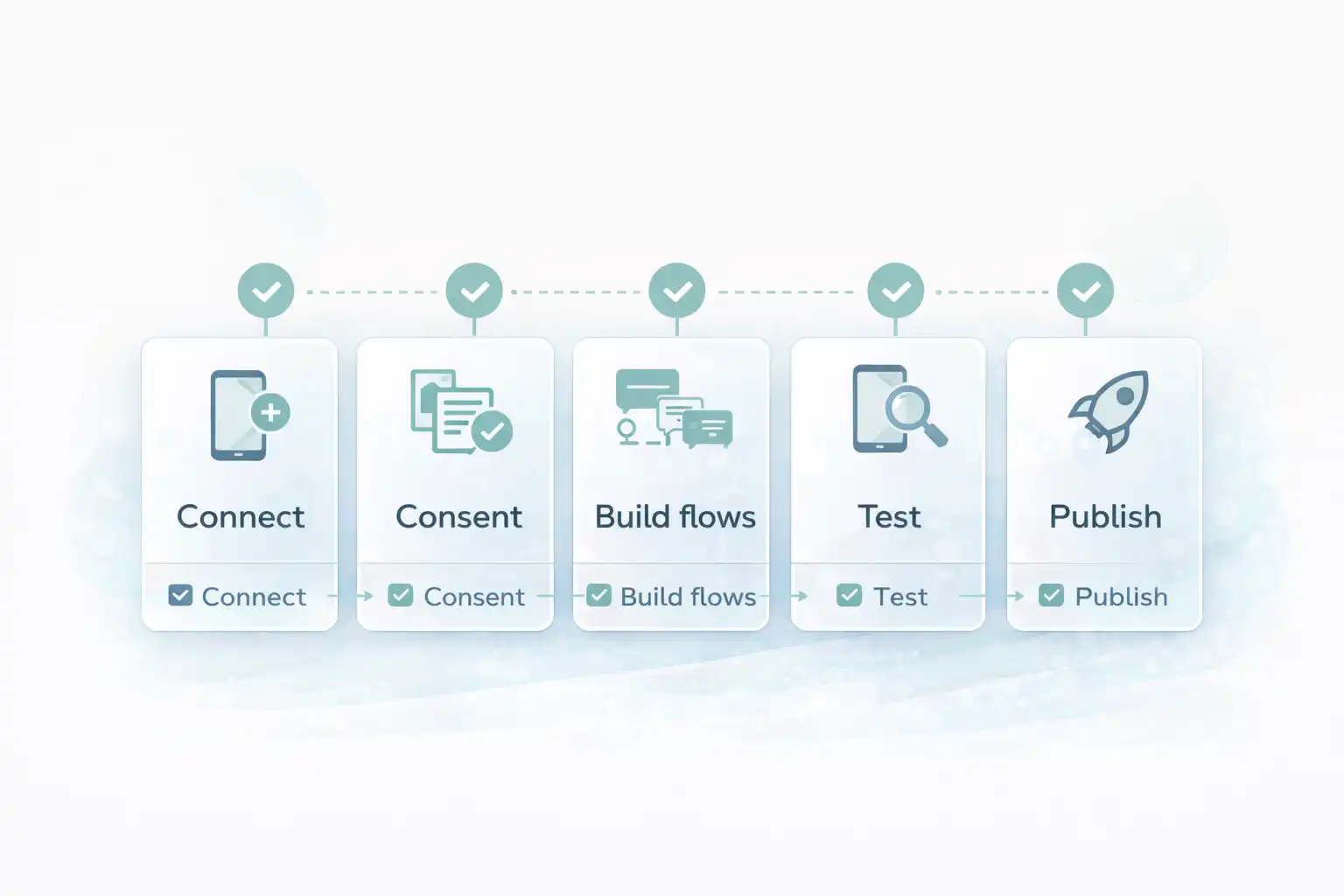
Omnisend SMS Automation Setup checklist
SMS is powerful because it’s immediate — but that also means consent and frequency control matter. This task keeps you safe and effective: build a clean opt-in, then ship a small set of revenue flows.
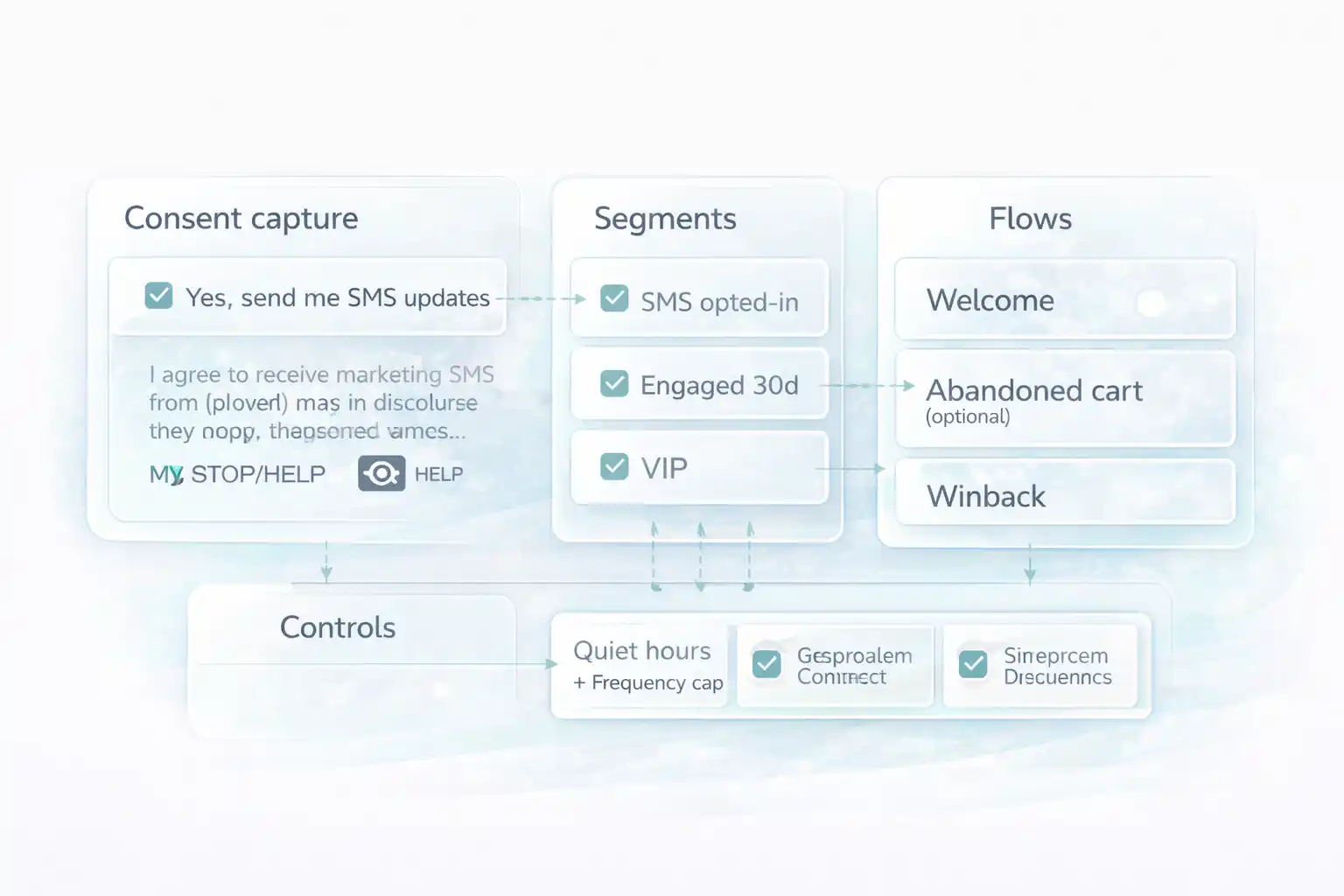
- Consent: clear checkbox language + disclosure + STOP/HELP instructions.
- Segments: SMS opted-in, engaged, VIP (so you don’t spam everyone).
- Flows: welcome SMS, abandoned cart SMS (optional), winback SMS.
- Controls: quiet hours + frequency caps + testing before publish.
Before you start Omnisend SMS Automation Setup
Prepare these so the setup doesn’t stall:
- Omnisend admin access (SMS settings + automations).
- Your store connected (Shopify or WooCommerce integration).
- A dedicated SMS signup point (popup, footer form, checkout checkbox).
- Your brand basics: support email, store URL, sender name.
- Decide your sending window (quiet hours) and max messages/day.
Start with the platform. Enable SMS in Omnisend so you can test consent and STOP replies.
Open OmnisendCommon mistakes (that waste hours) when Omnisend SMS Automation Setup
- No explicit SMS consent → risk + low trust (people opt out fast).
- Too many flows too soon → churn (opt-outs) + poor ROI.
- No quiet hours → complaints and spam reports.
- Using discounts as default → you train customers to wait for coupons.
- One segment for everyone → you can’t control frequency by intent.
Step-by-step (GPS)
Step 1/9 — Decide your SMS scope (EU/US) + first use-cases
Goal: focusStart with 2–3 flows. The best SMS program is controlled, not loud.
Recommended v1 flows
- Welcome SMS (after opt-in)
- Winback SMS (inactive buyers)
- Abandoned cart SMS (only if your cart volume is high)
Quick budget check (optional)
If you need to estimate credits and cost:
Step 2/9 — Enable SMS in Omnisend and confirm sender settings
Goal: ready-to-sendTurn on SMS and make sure your sender identity is configured (availability depends on country and provider rules).
Do this
- In Omnisend: open SMS / Channels settings (name may vary by account).
- Confirm your sending region and default sender.
- Set brand name and default support contact.
- Save and proceed (we test later).
Pricing limits (optional)
Check your plan’s SMS allowances before scaling.
Step 3/9 — Set consent language (copy/paste) + STOP/HELP keywords
Goal: compliant opt-inYour consent text should be clear: what they’ll receive, how often, and how to opt out.
Consent disclosure (copy/paste)
Use this as a base and adapt to your policy:
I agree to receive marketing SMS from [Brand]. Msg & data rates may apply. Frequency varies. Reply STOP to unsubscribe, HELP for help. See Privacy Policy: [link] and Terms: [link].
EU consent reference (FOLLOW)
If you need a consent baseline for EU compliance, use the EDPB consent guidelines:
Next: put consent on-site and connect it to an SMS segment.
Continue in OmnisendStep 4/9 — Add an SMS signup point (popup or checkout)
Goal: real opt-insYour signup must collect the phone number and show the disclosure near the checkbox/button.
Recommended placements
- Popup (low friction, high volume)
- Checkout checkbox (high intent, cleaner consent)
- Footer form (low volume but “always on”)
Checkbox label (short)
Yes, send me SMS updates and offers from [Brand]. Reply STOP to opt out.
Step 5/9 — Build SMS segments (so you can control frequency)
Goal: targetingSegments prevent spam. You’ll send different messages to “new opt-ins” vs “VIP buyers.”
Minimum segments (v1)
- SMS opted-in (the base segment)
- Engaged last 30 days (clicked/opened/bought recently)
- VIP / Repeat buyers (high value)
Frequency cap rule (copy)
Default cap: max 1 SMS/day per contact (v1).
VIP segment can receive up to 2 SMS/week if value is high.
Step 6/9 — Build your first SMS flows (templates inside)
Goal: revenueKeep SMS short: one benefit + one CTA. Link to a clean landing page or the cart.
Welcome SMS (send 1–5 min after opt-in)
Welcome to [Brand] 👋 You’re in.
Here’s what to expect: drops, restocks, and best-sellers (1–2 msgs/week).
Browse now: [link]
Abandoned cart SMS (optional, send ~1–2h after)
Still thinking it over? Your cart is waiting 🛒
Finish checkout here: [link]
Reply STOP to opt out.
Post-purchase SMS (send 3–7 days after delivery)
How’s it going with your [product]? Want a quick tip or a matching add-on?
See picks: [link]
Winback SMS (send after 45–90 days inactive)
We saved you a spot, [Name] 🙂
See what’s new at [Brand]: [link]
(If you’re not interested, reply STOP.)
Step 7/9 — Add quiet hours + frequency caps
Goal: controlQuiet hours and caps protect your list. This is the difference between “SMS that prints” and “SMS that burns trust.”
Recommended quiet hours (copy)
Quiet hours (v1):
Do not send 20:00–08:00 local time.
Avoid weekends unless it’s a time-sensitive alert.
Hard rule
- Never send SMS to non-consented contacts.
- Exclude “opted out” everywhere by default.
- Campaigns should target engaged segments first.
Step 8/9 — Test end-to-end (consent → flow → STOP)
Goal: verifiedTesting is not optional. You must confirm opt-in status, delivery, link tracking, and opt-out behavior.
Test checklist
- Opt in using your own number (real form).
- Confirm contact shows SMS subscribed in Omnisend.
- Trigger Welcome SMS and open the link on mobile.
- Reply STOP to confirm opt-out works.
- Try a second message to ensure suppressed contacts don’t receive SMS.
UTM template (optional copy)
?utm_source=omnisend&utm_medium=sms&utm_campaign={{campaign_name}}
Step 9/9 — Publish v1 and monitor opt-outs (optimize after 7 days)
Goal: livePublish with control. Then watch opt-out rate and revenue-per-message before adding more flows.
What to watch (first 7 days)
- Opt-out rate (by flow)
- Revenue per SMS (or per send)
- Clicks per message
- Time-of-day performance (adjust quiet hours carefully)
Omnisend SMS Automation Setup Flow diagram (consent → flows → controls)
Use this to confirm the order: consent first, then flows, then quiet hours + caps.
Omnisend SMS Automation Setup Done checklist (you’re finished when…)
- SMS signup consent text is visible and clear (frequency + STOP/HELP included).
- Your own number can opt in and appears as SMS subscribed in Omnisend.
- Welcome SMS is published and delivers correctly.
- At least one additional flow is live (winback or abandoned cart).
- Quiet hours and frequency caps are set (v1).
- STOP opt-out is verified (you cannot message opted-out contacts).
- You have a 7-day optimization plan (one variable at a time).
Publish your first compliant SMS flows today
You now have a clean consent setup, a v1 flow set, and the controls that protect your list. Open Omnisend, test your own number, publish, and optimize after 7 days of real data.
No credit card required • Cancel anytime • Consent first, frequency second