
Omnisend Abandoned Cart Shopify
Omnisend Abandoned Cart Shopify — this task walks you through a proven 3-message recovery sequence (email + optional SMS) with exact timing, dynamic product blocks, and a clean “done” checklist. You’ll publish v1 today and optimize after 7 days of data.
If you’re building the full system, see Shopify email automation.
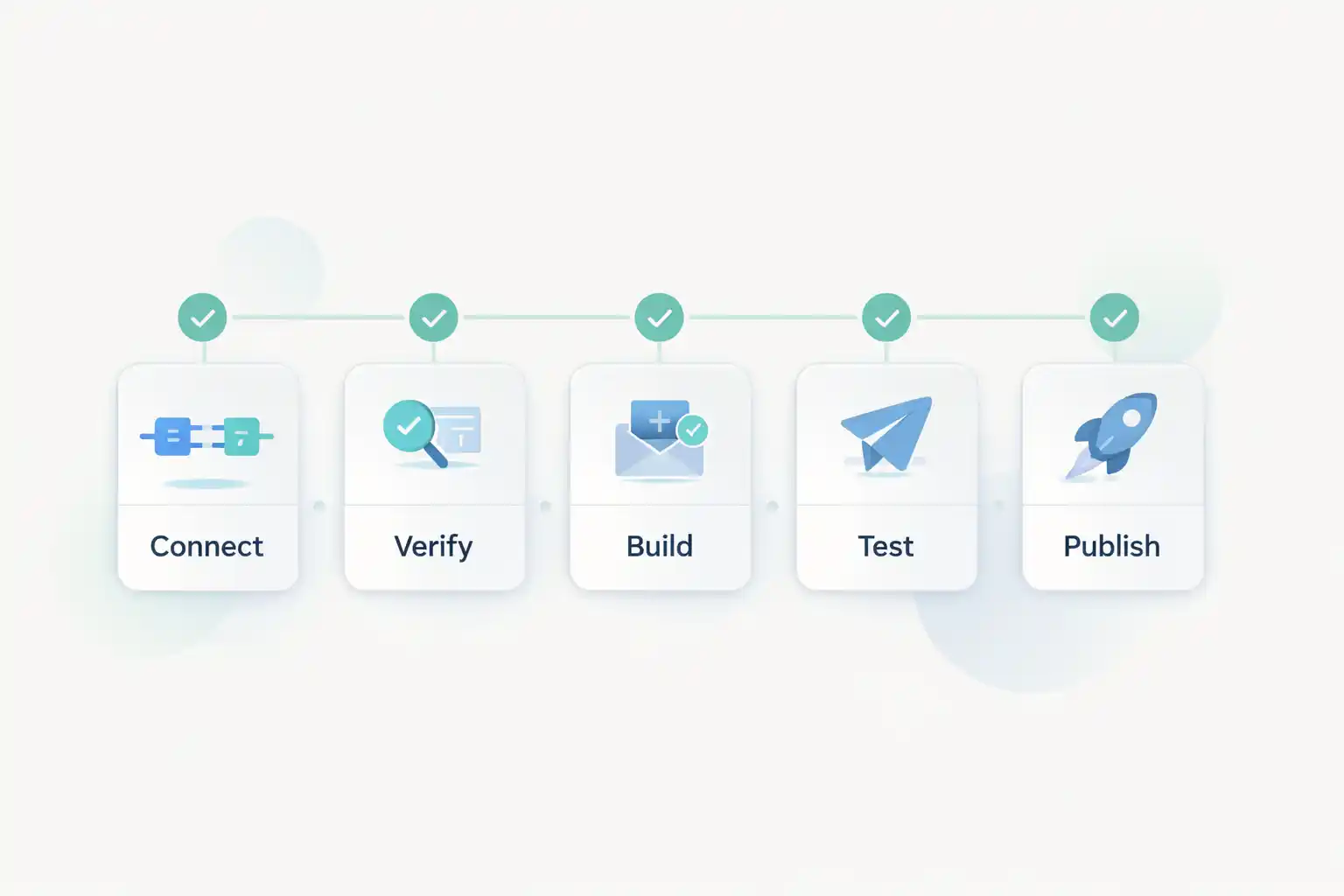
Omnisend Abandoned Cart Shopify template + timing (copy this)
This is a “ship v1” timing that works for most Shopify stores. It’s fast to implement and easy to optimize later.
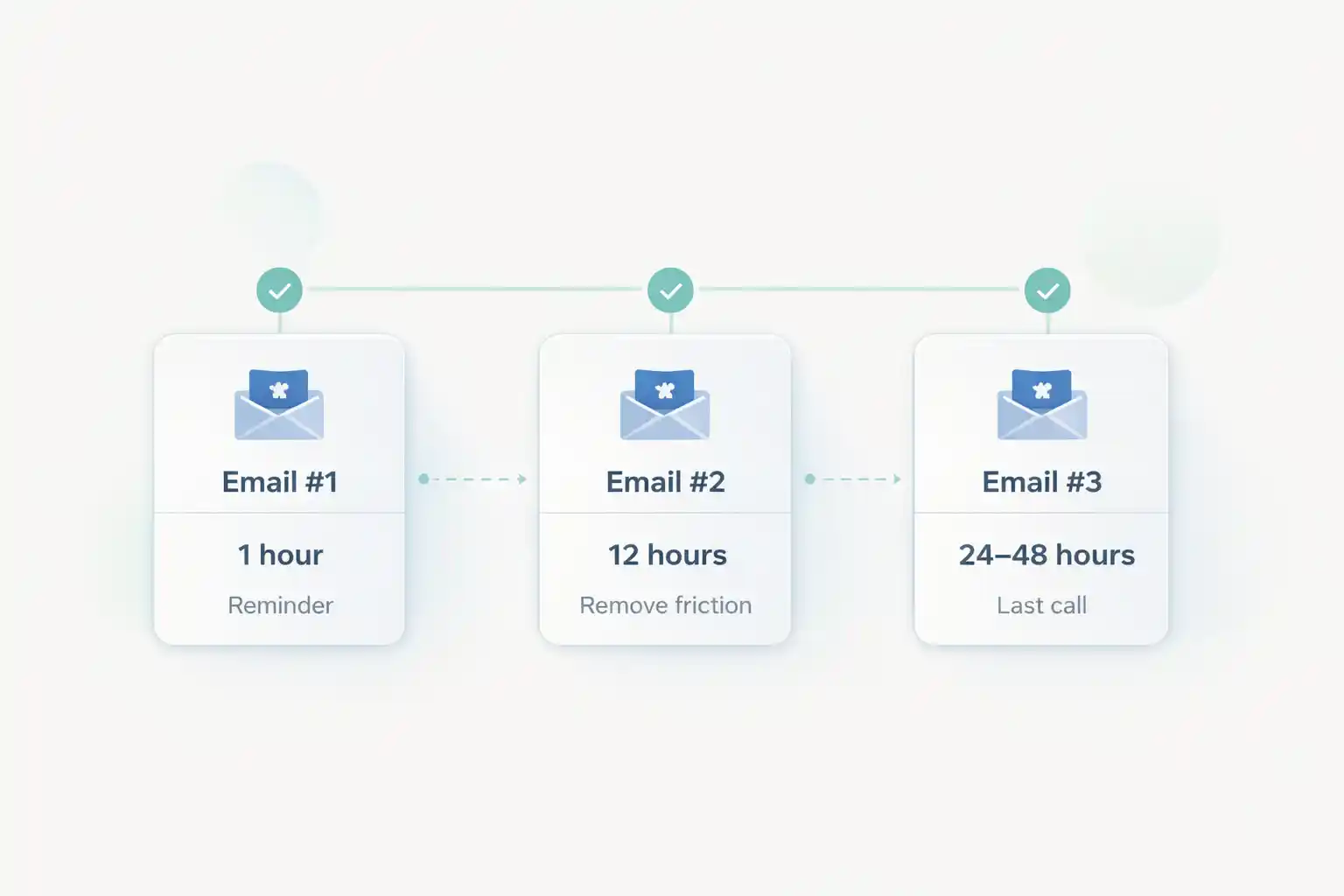
- Email #1: 1 hour after abandon (gentle reminder).
- Email #2: 12 hours after abandon (remove friction: shipping/returns/FAQ).
- Email #3: 24–48 hours after abandon (last call + optional incentive).
- Optional SMS: only if consent — use as the last touch, not first.
Before you start
Prepare these 5 items now so you don’t get stuck mid-build:
- Shopify admin access (apps + discounts + checkout settings).
- Omnisend admin access (Automations + Campaigns).
- Your sender identity ready (From name + reply-to).
- A test inbox (Gmail or similar) for end-to-end testing.
- Choose one trigger: cart or checkout (don’t run both systems).
Ready? Open Omnisend and keep Shopify in another tab.
Open OmnisendQuick decisions (so you don’t overthink)
- Trigger: Start with cart abandoned unless your store only captures email at checkout.
- Discount: Skip in Email #1. If needed, use only in Email #3.
- Goal: Publish v1 today, then optimize after 7 days of data.
Common mistakes (that waste hours)
- Shopify recovery + Omnisend recovery both ON → customers get duplicates.
- Wrong trigger (cart vs checkout) → poor targeting + confusing metrics.
- Discount too early → trains people to abandon for a code.
- No dynamic product block → generic emails that underperform.
- Testing without a real inbox → you miss deliverability and mobile issues.
Step-by-step: build the workflow
Step 1/8 — Turn off duplicate Shopify recovery
Goal: one systemIf Shopify also sends recovery emails, your customers will receive duplicates. Disable the native recovery if you’ll use Omnisend.
Do this (Shopify)
Find Shopify’s abandoned checkout/recovery settings and switch off the automated emails.
FOLLOW reference (official)
Shopify guide (use it to find the right area in admin): Recovering abandoned checkouts
Keep it open while you complete Step 1.
Step 2/8 — Verify Shopify events in Omnisend
Goal: triggers fireYour automation only works if events arrive. Don’t continue until you can see fresh cart/checkout activity in Omnisend.
Do this (Omnisend)
- Open Integrations → confirm Shopify is connected.
- Locate the events/activity view.
- Run a test: add a product to cart and start checkout.
If it fails (fast fixes)
- Test in incognito (no extensions).
- Temporarily disable overlapping tracking scripts.
- Check theme/cart drawer apps that change cart behavior.
Step 3/8 — Choose the right trigger (cart vs checkout)
Goal: correct audienceStart with cart abandoned for broader recovery. Use checkout abandoned if emails are only captured late in checkout.
Best default
Cart abandoned → more volume, typically more revenue.
Use when: events are clean and you capture shoppers earlier.
When to switch
Checkout abandoned → less volume, higher intent.
Use when: cart events are noisy or email exists only at checkout.
Step 4/8 — Build Email #1 (1 hour): gentle reminder
Goal: highest conversionsKeep it short. Use a dynamic product block and one strong button. Don’t discount yet.
Subject lines (copy)
You left something behind 👀
Still thinking it over? Your cart is saved
Quick reminder: complete your checkout in 1 click
Minimum content
- Headline: “Your cart is saved”
- Dynamic products block
- One CTA: “Return to checkout”
- One trust line: shipping / returns / support
Building now? Keep this page open as your checklist and work in Omnisend in another tab.
Start Omnisend FreeStep 5/8 — Build Email #2 (12 hours): remove friction
Goal: answer doubtsConversions here come from clarity: shipping, returns, and support — not hype.
Structure
- Line: “Any questions before you check out?”
- 3 bullets: shipping, returns, support
- Dynamic products block
- CTA: “Complete checkout”
Success check
- Readable on mobile
- CTA visible quickly
- Links don’t 404
Step 6/8 — Build Email #3 (24–48 hours): last call
Goal: close loopIf you use an incentive, use it only here. Keep one CTA and one decision.
When to add a discount
- Competitive niches (price shopping is common)
- Healthy margins
- Skip for premium positioning
Copy blocks (copy)
Last call — your cart won’t stay saved forever
Still want it? Here’s the fastest way to finish checkout
Step 7/8 — Test end-to-end (real inbox)
Goal: prove it worksTesting is where most “it doesn’t send” problems get solved in 10 minutes.
Do this
- Incognito window + real email address
- Add 1–2 products → abandon at your chosen trigger stage
- Shorten delay temporarily if needed
- Confirm button returns to correct cart/checkout with items preserved
If it fails
- Re-check events (Step 2)
- Confirm workflow is ON (not draft)
- Check segment/exclusion rules
- Confirm Shopify native recovery is still OFF (Step 1)
Step 8/8 — Publish + monitor (first 7 days)
Goal: ship v1Publish today, then optimize after 7 days. One variable at a time.
Publish checklist
- Workflow is turned ON
- Delays match the template
- Each email has one strong CTA
- Dynamic product block renders correctly
Monitor (7 days)
- Email #1 open + click rate
- Revenue per message
- Unsubscribes (duplicate sends or too aggressive timing)
Flow diagram (timing + intent)
Visual reference so your timing stays consistent.
Done checklist (you’re finished when…)
- You’re running one recovery system (no duplicate Shopify sends).
- Events are verified for your test customer (cart/checkout activity is visible).
- Email #1 includes dynamic products + one CTA.
- Email #2 removes friction (shipping/returns/support bullets).
- Email #3 is a clean last call (optional incentive only here).
- Buttons return to correct cart/checkout (items preserved).
- Workflow is ON (not draft), and a real inbox test succeeded.
- You review results after 7 days (one variable at a time).
Start Omnisend and publish today
You now have a clean v1 sequence with the right timing, structure, and tests. Open Omnisend, publish, then optimize after 7 days of real data.
No credit card required • Cancel anytime • Keep Shopify in another tab