
Omnisend WooCommerce Setup Step-by-Step
This Omnisend WooCommerce Setup Step-by-Step playbook gets you from “not connected” to “automation sending” in 30–45 minutes. You’ll connect your store, verify events, publish the core flows, and run a real inbox test.
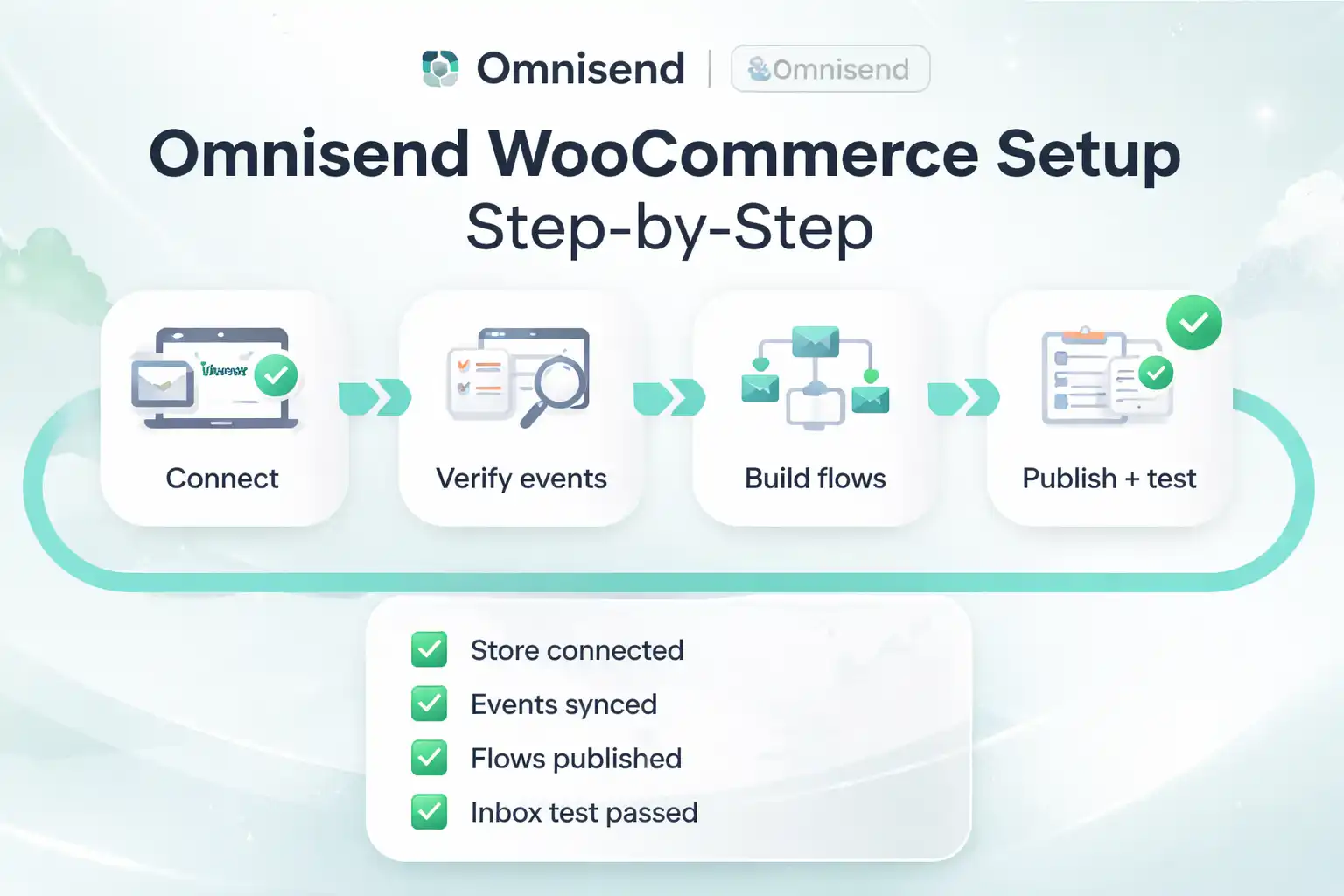
What you’ll have when you finish
When this Omnisend WooCommerce Setup Step-by-Step is done, your store will be connected and Omnisend will receive the actions that matter (view, cart, checkout, purchase). That means automation can actually trigger — and you can finally trust the data.
Quality bar: Ship v1 today. Optimize after 7 days of data.
Quick navigation
Need limits first? See pricing limits →
Omnisend WooCommerce Setup Step-by-Step: Before you start
This section removes friction. If you prep these items first, the rest of the Omnisend WooCommerce Setup Step-by-Step becomes a straight line instead of random troubleshooting.
- WordPress admin (install/activate plugins)
- WooCommerce access (orders + checkout settings)
- Omnisend login (new or existing account)
- One test inbox (Gmail/Outlook) for deliverability checks
- Brand basics ready: From name, support email, logo
Fast test plan: you will run 3 tests later — (1) new signup, (2) abandoned cart, (3) test purchase. Keep one product and one coupon ready to avoid noise.
Common mistakes (that waste hours)
Read this once. Most “Omnisend doesn’t work” issues come from these predictable points.
- Stopping after install: plugin installed, but the connection wizard isn’t finished → no sync.
- Testing while cache/minify is aggressive: events don’t fire → flows never trigger. Disable during verification.
- Consent confusion: importing contacts as subscribed without valid opt-in hurts deliverability.
- Flows left in Draft: everything “looks built”, but nothing sends until it’s published.
- No real order test: without a test purchase, post-purchase flow never gets validated.
Create the Omnisend workspace for this store
You need a dedicated account/workspace so your store data, contacts, and automations live in one place.
Do this
Open Omnisend and create an account (or log in). Use an email you’ll keep long-term.
Success check
You’re inside the Omnisend dashboard and can access Integrations / Store settings.
Install “Email Marketing for WooCommerce by Omnisend”
This plugin is the bridge that syncs products, orders, customers, and tracking events into Omnisend.
Do this
WP Admin → Plugins → Add New → search “Omnisend” → Install → Activate.
If it fails
Update WordPress + WooCommerce, then retry. Hosting security rules can block plugin install on some setups.
Connect WooCommerce to Omnisend (finish the wizard)
This is the “make it real” step. Without a completed connection, the rest of the setup is just theory.
Do this
Open Omnisend plugin settings in WordPress and follow the Connect flow to link your Omnisend account.
Official reference (FOLLOW): Connect WooCommerce store to Omnisend
Success check
Plugin shows “Connected” and Omnisend displays your store as connected.
CTA checkpoint: If you haven’t created your account yet, do it now. Open Omnisend →
Confirm timezone, currency, and sender identity
Correct basics = correct reporting + consistent branding in every automation email.
Do this
In Omnisend: confirm currency/timezone, upload logo, set From name, set reply-to email.
Success check
Email preview shows correct From name and store branding, and reporting matches your Woo currency.
Verify that WooCommerce events are firing
This is the highest-value checkpoint in the Omnisend WooCommerce Setup Step-by-Step. If events don’t fire, flows won’t trigger — no matter how beautiful your emails look.
Do this
Do a real test session: view product → add to cart → start checkout → place a test order.
Temporarily disable aggressive cache + JS minify during testing.
Success check
In Omnisend, you can see the key actions recorded (view/cart/checkout/purchase).
If it fails: disable cache + JS minify, retest in incognito, confirm the plugin is still connected, then re-enable performance plugins one-by-one after events work.
Align consent so deliverability stays healthy
Use real opt-in sources (checkout checkbox, forms, popups). Avoid “upload and blast” habits that destroy inbox placement.
Do this
Verify your signup source. Import lists only when you have valid opt-in. Keep a clear unsubscribe experience.
Success check
A test signup appears correctly in Omnisend and can receive campaigns/automations.
Publish the 3 money flows (v1)
Keep it simple: Welcome, Abandoned Cart, Post-purchase. This is the fastest path to revenue from automation.
Do this
Create each flow, choose a clean template, add one clear CTA, and publish.
Success check
Each flow is Live/Active (not Draft) and you can see entries when you test.
Want the exact sequencing for Woo? See WooCommerce Email Automation.
Run 3 real tests (signup, cart, purchase)
Don’t trust “configured”. Trust “arrived in inbox”. This is where your setup becomes production-ready.
Do this
Test: new signup → welcome email, abandoned cart → cart email, purchase → post-purchase email.
Success check
Emails arrive, links work, unsubscribe is visible, and tracking looks consistent.
Monitor for 7 days (small fixes, big compounding gains)
The fastest improvement comes from tiny adjustments after real data: entry volume, subject lines, send delays, and deliverability.
Do this
Check daily: flow entries, opens/clicks, spam complaints, unsubscribes, and revenue attribution.
If it fails
No entries = events/conditions problem. Low inbox placement = consent/sender issues.
This is the closing moment of the Omnisend WooCommerce Setup Step-by-Step. Keep building inside Omnisend: Start/continue →
Done checklist (your “green” finish line)
You’re done when these are true. This checklist is the practical finish line for the Omnisend WooCommerce Setup Step-by-Step.
- ✅ Plugin shows Connected
- ✅ Products/customers/orders are syncing
- ✅ Events are firing (view/cart/checkout/purchase)
- ✅ Welcome flow is Live and sends after a test signup
- ✅ Abandoned cart flow is Live and triggers after a test cart
- ✅ Post-purchase flow is Live and triggers after a test purchase
- ✅ Emails arrive in a real inbox and include unsubscribe link
- ✅ You have a 7-day monitoring habit (entries + deliverability)
Ready to set it live?
Start Omnisend, connect WooCommerce, publish your first 3 flows, and verify with a real inbox test. Ship v1 today.
Start Omnisend Free (Final Step) →Prefer to check limits first? See pricing limits →